The Battlespace Browser
A battlespace fills up fast — events, units, annotations, areas of interest, fused intel, and the actors behind them all accumulate on the globe. The Battlespace Browser is the single surface for making sense of that pile: it lists everything in the focused battlespace and lets you slice it by whatever question you're asking. It's the Browser tab in the sidebar (or its icon on the left rail).
The Browser holds no folders and nothing to file. Its structure is derived — computed live from the metadata each item already carries — so it is never out of date and never needs tidying. You shape the view; the data falls into place. If you've used a music library that can show the same songs by artist, by album, or by year without ever moving a file, you already know how this works.
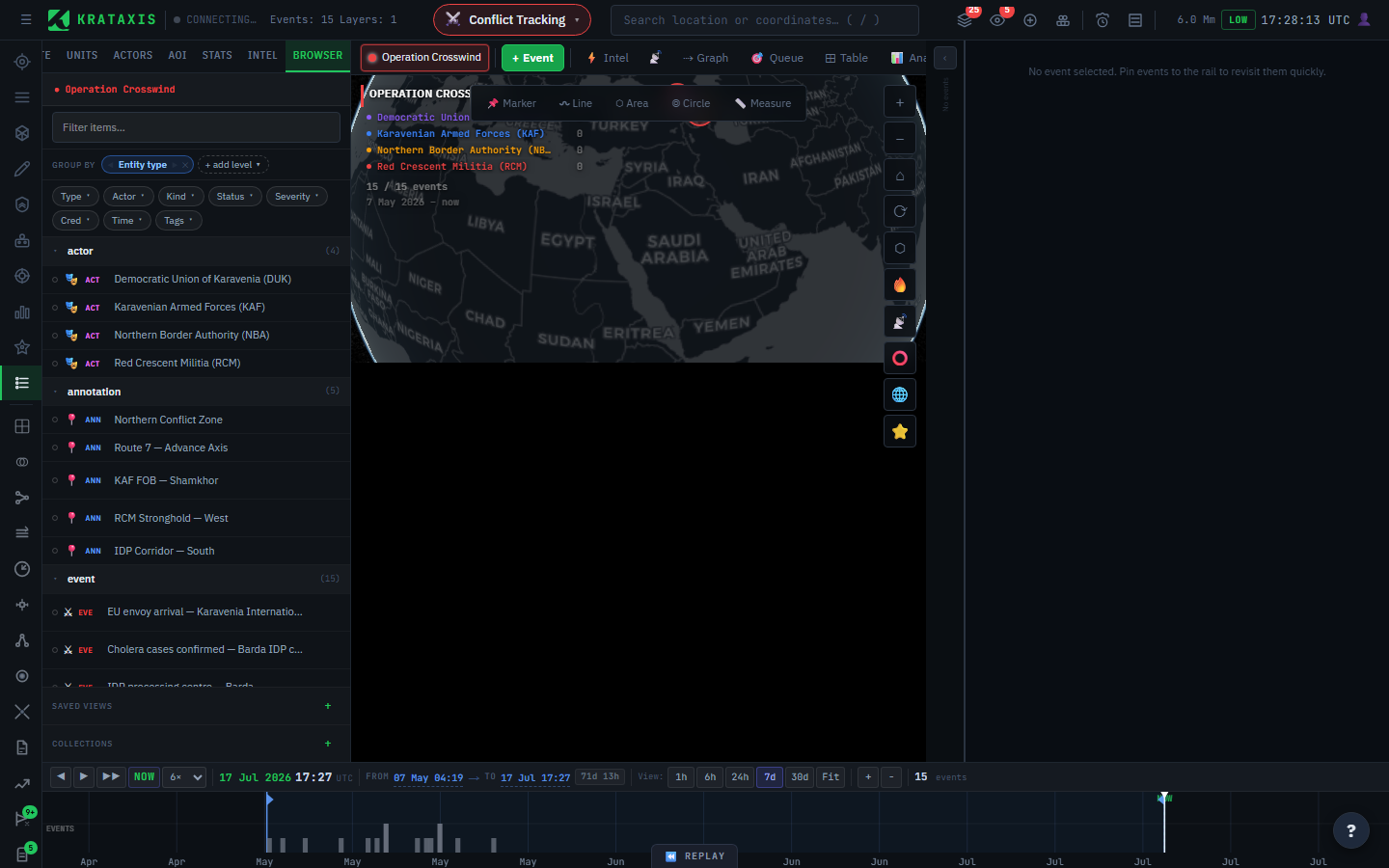
What it shows
Every entity in the focused battlespace, unified into one list regardless of type:
- Events — incidents on the map.
- Units & infrastructure — forces and fixed assets.
- Annotations — your drawn markers, lines, and areas.
- Areas of interest — the regions you monitor.
- Intel — fused pipeline output.
- Actors — the factions themselves.
Each row shows the item's type, title, and a 🎯 fly-to button when it has a location. With no battlespace focused, the Browser shows your global, unscoped items instead.
Finding things — search and filters
Two controls narrow the list:
- Search — the box at the top matches text in titles and names. Type a few letters to jump to what you remember.
- Filter chips — a row of facet dropdowns: Type, Actor, Kind, Status, Severity, Credibility, Time, Tags, AOI. Each chip lists the values present in the current battlespace with a count beside each. Pick values to narrow down.
Filters combine the way you'd expect: across different chips they narrow (Actor = Aggressor and Severity = Critical), while within one chip they widen (Credibility = High or Moderate). Groups that end up empty disappear, so you only ever see what's actually there — no scrolling past empty buckets.
Understanding composition — group by
The Group by control turns the flat list into a structured breakdown. Add one facet — say Actor — and the list reorganises into collapsible headers with counts: Russian Forces (142), Ukrainian Forces (98), Unattributed (31). That row of counts is, in itself, an at-a-glance read of what the battlespace contains.
Grouping is multi-level. Add a second facet and the groups nest; add a third and they nest again. Build the order with the chips:
Group by: [ Actor ◀▶ ✕ ] › [ Kind ◀▶ ✕ ] › + add level ▾
+ add levelappends another facet (it only offers facets you haven't used yet).- ◀ ▶ reorder a level — Actor → Kind reads differently from Kind → Actor.
- ✕ removes a level. Remove them all for a flat list.
Items with no value for a level collect under a (none) group, always shown last, so nothing is silently dropped. An item that belongs to several values — an event attributed to two actors, say — appears under each, because grouping is a view, not a filing decision.
Saving a view
Once you've dialled in a useful filter-and-grouping combination, save it from the Saved Views rail. A saved view stores the recipe — the filters, search, sort, and group-by levels — not a frozen list of items, so reopening it re-runs against the current data and always reflects the latest picture. Saved views are personal to you.
Curating for products — collections
Where saved views are dynamic, collections are hand-picked. A collection is a named set of items you choose yourself — the raw material for a briefing or an intel product. Select items in the list (click, or Ctrl/Shift-click for several) and use a collection's +sel button to add them. An item can sit in any number of collections at once, and collections are shared across the battlespace — everyone working it sees the same set (editing one needs write access to the battlespace).
Acting on an item
- Click a row to open its inspector (events and units) or fly to it.
- 🎯 flies the globe straight to the item's location.
- Ctrl/Shift-click builds a multi-selection for adding to a collection in one go.
Worked examples
"What air assets does the aggressor field?" Filter Actor = Aggressor, then Group by → Kind. The unit-type groups (and their counts) lay out the aggressor's order of battle. Or skip the filter and group Actor → Kind to compare every side at once.
"What's happened in the Kharkiv AOI this week?" Filter AOI = Kharkiv and Time = This week, then Group by → Kind to see strikes, manoeuvres, and intel separated out. Click any row to fly to it.
"Show me only what I can trust." Filter Credibility = High (add Moderate within the same chip if you want both). Group by Actor or Time to see where the well-sourced activity is concentrated.
"Build Monday's brief." Create a collection called Mon brief. Filter and group to surface the items that matter, Ctrl-click the ones you want, and add the selection. The collection becomes a tidy shelf your teammates can see and that a future intel product can draw from.
"How big is this situation, and of what?" Group by Entity type for the top-line composition (how many events vs units vs intel), then add Actor beneath it to see how that breaks down by side — a two-line answer to "what am I looking at?"
Where to next
- Battlespaces — the container the Browser scopes to.
- Areas of Interest — define the regions you filter and group by.
- Actors & Territory — the attribution that powers grouping by side.