Your Profile & Preferences
Your profile is where you manage three things: how you appear to other analysts, how the workstation behaves for you, and the security of your account. Open it from the 👤 user menu at the top-right of the workstation — My Profile opens the page, Preferences opens it directly on the preferences tab.
The page has tabs down the left side: Profile, Preferences, and Security.
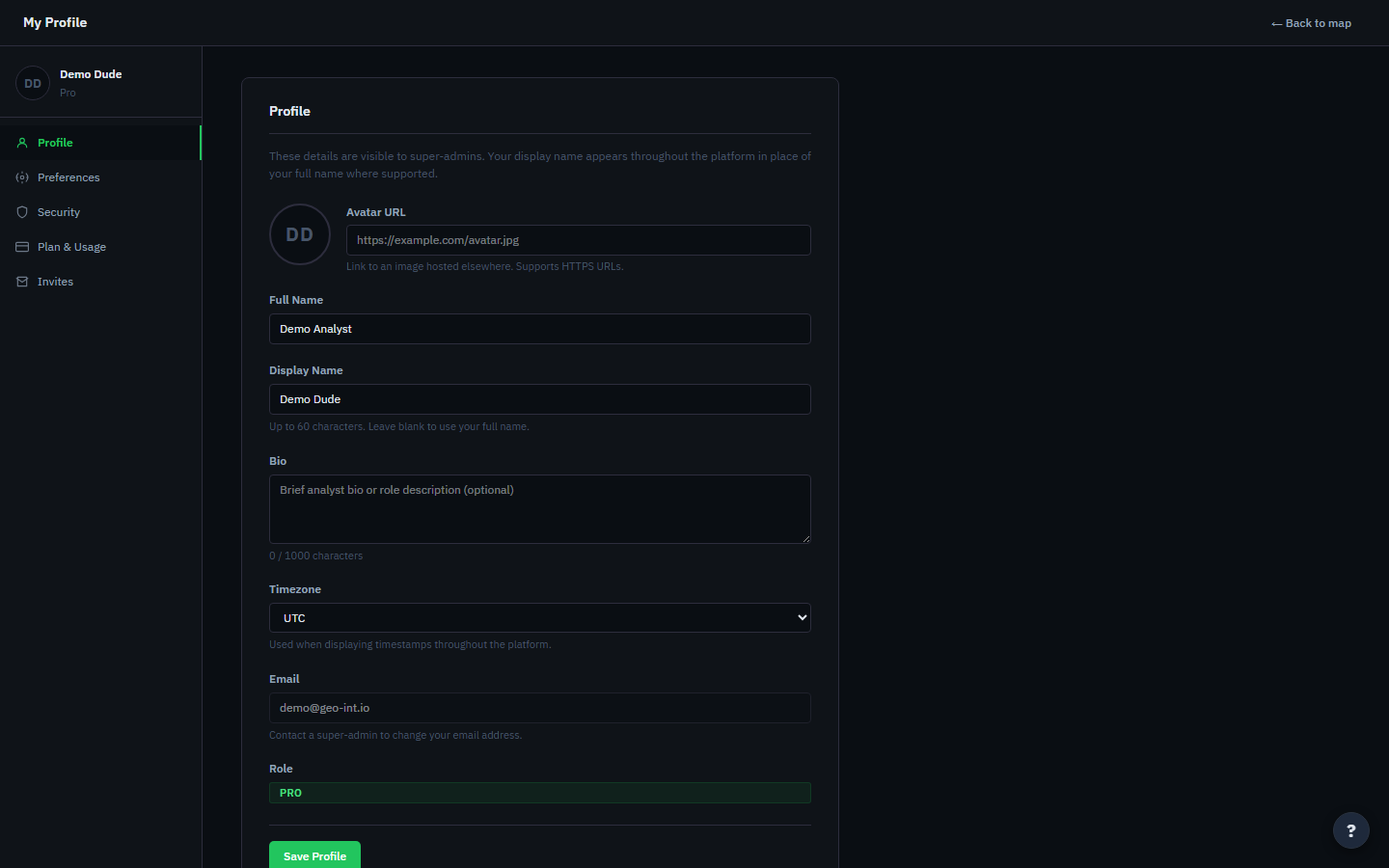
Profile
This tab is your identity on the platform:
- Display name — what other analysts see on shared investigations, in the collaboration feed, and against your analyst actions. Choose something your teammates will recognise; a display name that nobody can place defeats the point of attribution.
- Bio and avatar — optional context for teammates on shared work.
- Timezone — used when displaying timestamps throughout the platform, so event times read in the frame you actually think in.
Edit the fields and save.
Preferences
This tab tunes the workstation to how you work — think of it as adjusting the seat and mirrors before a long drive. It covers, broadly:
- Interface theme — the visual styling of the workstation.
- Map defaults — starting view and globe behaviour, so the map opens the way you like it.
- Display options — how information is presented across panels (density, labels, and similar).
- Notifications — which signals reach you. These are the time-sensitive ones worth tuning deliberately: watchlist hits, escalation signals, deception flags, and triage items.
The notifications section deserves a moment of real thought. The principle is the same as a smoke alarm: an alarm that goes off every time you make toast gets ignored, and then it's worthless on the day it matters. Turn up what you must not miss; turn down the rest so genuine alerts stand out.
Adjust what you want and click Save preferences. Preferences are stored per-account, so they follow you to any machine you sign in from.
Tip: If the live map feels cluttered when you first sign in, the preferences tab is the place to set sensible map and display defaults — it pays for itself every session. New analysts almost always over-receive notifications at first; revisit that section once you know which signals actually drive your work.
Security
Change your password here. You'll confirm your current password and set a new one (8 characters minimum, the same rule as registration).
Because every analyst action — every escalation, verdict, and edit — is audited against your account, keeping it secure protects the integrity of the record, not just your own access. Update your password promptly if you suspect your credentials have been exposed, and avoid reusing a password from elsewhere.
If you've forgotten your password and can't sign in at all, this tab can't help you — use the Forgot password? flow instead. See Creating an Account & Signing In.
Frequently asked
| Question | Answer |
|---|---|
| Do my preferences sync between devices? | Yes — they're stored against your account, not the browser. |
| Will changing my display name affect past work? | It updates everywhere your name is shown, including on past actions; the underlying audit record stays intact. |
| Why am I not getting an alert I expect? | Check the Notifications section here first — the signal may be turned down — then confirm the item actually matches a watchlist or threshold. |
Where to next
- A Tour of the Workstation — if you haven't walked the interface yet.
- Core Concepts — the ideas that run through everything you'll do next.