Areas of Interest & Alerting
You can't watch the whole map at once, and you shouldn't have to. An Area of Interest (AOI) is a region you draw on the globe so the platform watches it for you — when an event or incoming report falls inside an active AOI, it raises an alert. Together with watchlists, AOIs turn the platform from something you read into something that tells you when to look.
It's the same shift as moving from checking your front door camera every few minutes to having a motion sensor: you stop polling, and the system starts interrupting — but only for the ground you told it to care about.
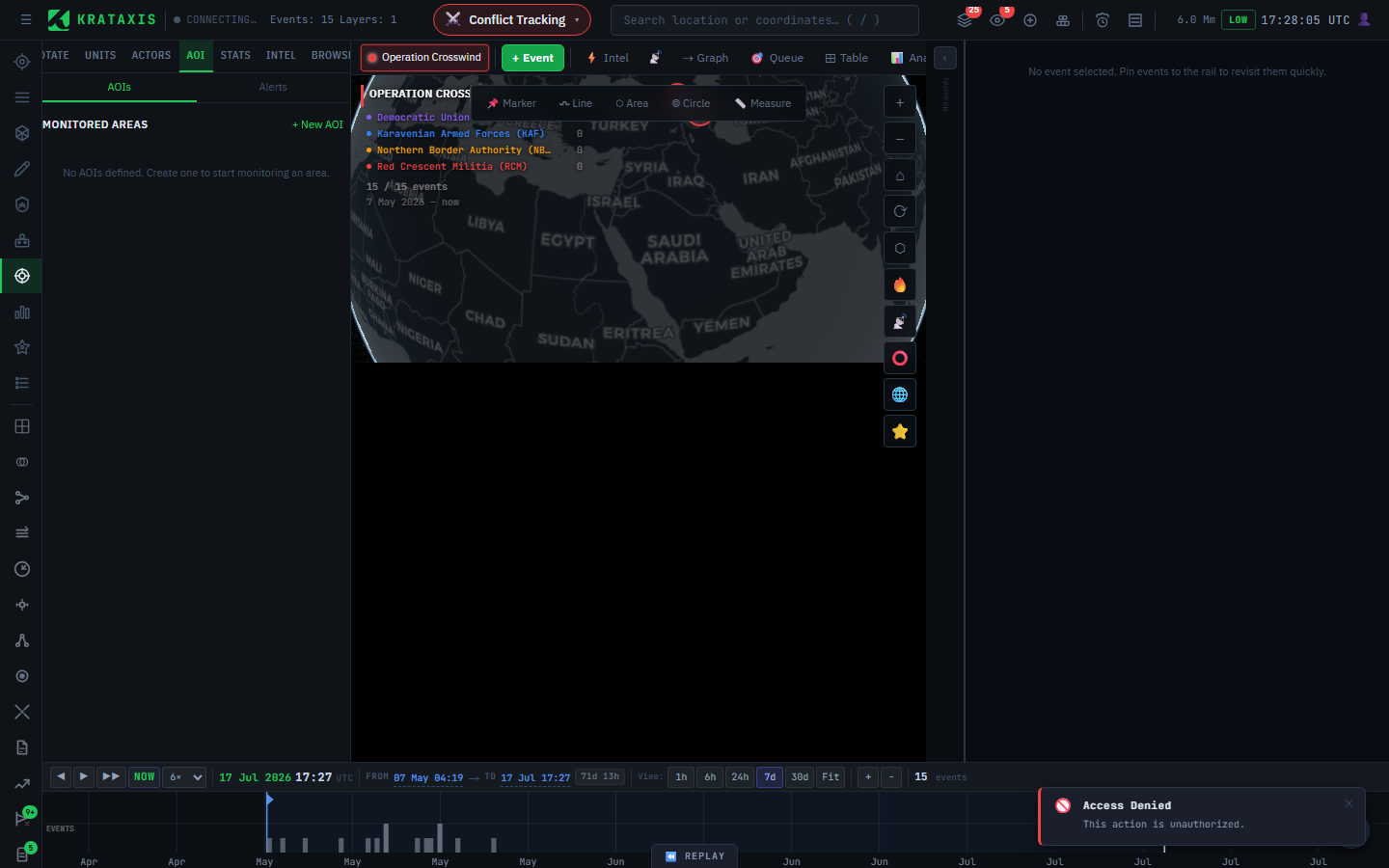
Drawing an AOI
- Open the AOI tab from the sidebar.
- Click + New AOI — a drawing mode activates on the globe.
- Click to place the polygon's vertices; double-click (or press Enter) to close it.
- Fill in the dialog:
| Setting | What it does |
|---|---|
| Name | A label for the area. |
| Description | Optional notes on why it matters. |
| Active | Turns alerting on or off without deleting the AOI. |
| Trigger on | Whether to alert on confirmed events, incoming reporting, or both. |
| Severity filter | Only alert at or above chosen severity levels — leave blank for everything. |
| Email notifications | Also send an email when something enters the area. |
- Save. The platform immediately runs a historic check against existing data, so a new AOI surfaces anything already inside it — you don't start from a blank slate.
Tune the filters, or drown in noise. A wide AOI set to "everything, any severity" will alert constantly — and an alert that fires constantly is an alert you'll learn to ignore, which is worse than no alert at all. Start narrow — high-severity events only — and widen if you're missing things.
In-app alerts
New alerts raise a badge on the AOI tab. The alert list shows which AOI fired, the item that triggered it, and when. Click an alert to fly straight to the location and open the triggering item; mark it read to clear it, or clear the whole list at once. This is the fastest loop in the platform: badge → click → you're looking at the thing that changed.
Email alerts
Switch on email notifications for an AOI and you'll get a message whenever something enters it — including the item's title, category and severity, location, source, and a link straight to it. Use email for the areas you must not miss while you're away from the screen, and leave it off for routine monitoring. (Email delivery depends on your deployment's mail configuration; if alerts aren't arriving by email, check with your administrator.)
Watchlists — the entity counterpart
Where an AOI watches a place, a watchlist watches the things you care about — specific actors or subjects — and flags incoming intel that touches them. The header's Watchlist badge carries the unread count, and watchlist hits are one of the notification types you can tune in your preferences.
Use AOIs and watchlists together: one covers the ground, the other covers the players. A convoy you're watching (watchlist) entering a border sector you're watching (AOI) fires both — which is exactly the moment you'd want to be interrupted twice.
Good practice
- Draw AOIs around what you'd be asked about — a facility, a border sector, a city — not the whole theatre.
- Lead with severity filters to keep alerts meaningful.
- Reserve email for the few areas that justify interrupting you; triage the rest in-app.
- Revisit your AOIs as a situation moves — the ground that mattered last week may not be the ground that matters now.
Where to next
- The Analyst Review Queue & Triage — acting on the items your alerts surface.
- Your Profile & Preferences — tuning which alerts reach you.